 KALENDOR
Is Kalendor lagging? How to raise FPS on an old computer
Kalendor runs in the browser, but it has a lake, a huge castle, forests and hundreds of creatures in it. On a strong computer all of that draws without trouble. On an old laptop or a machine with a weak graphics card the game can stutter. Most of the settings exist for exactly this, and turning down the right two or three is often enough.
Measure first: the FPS meter
To see what actually helps, you need to measure first. In Settings, turn on the FPS meter. In a corner of the screen you see how many frames are drawn per second, the frame time and the stutters. After you change a setting, look at the number again in the same spot, facing the same way. FPS is naturally different in the crowded bazaar and on an empty meadow; do your comparison in the same place.
The fastest fix: LOW
At the top of Settings is Graphics quality: LOW, MEDIUM, HIGH. When you pick one, all the details under it adjust to match. If your computer is old, start straight with LOW. The game was prepared to run smoothly on old machines at this setting.
If LOW feels too plain, you can raise a few of the details one by one. The moment you change a detail, the quality becomes CUSTOM; that's not a problem, it just means you've made your own mix.
Next to each detail sits an FPS IMPACT label. It shows how much lowering that setting can raise your frame rate. When you can't decide, touch the ones with the big label first.
If your graphics card is weak
Lag mostly comes from the graphics card. These settings make the most difference:
- Resolution scale. On weak graphics cards this is the setting that raises FPS the most. The game draws with a few fewer pixels; the picture gets slightly blurrier but smoothness improves noticeably. If you choose AUTO, the game lowers the resolution itself when it slows down and raises it back when it recovers.
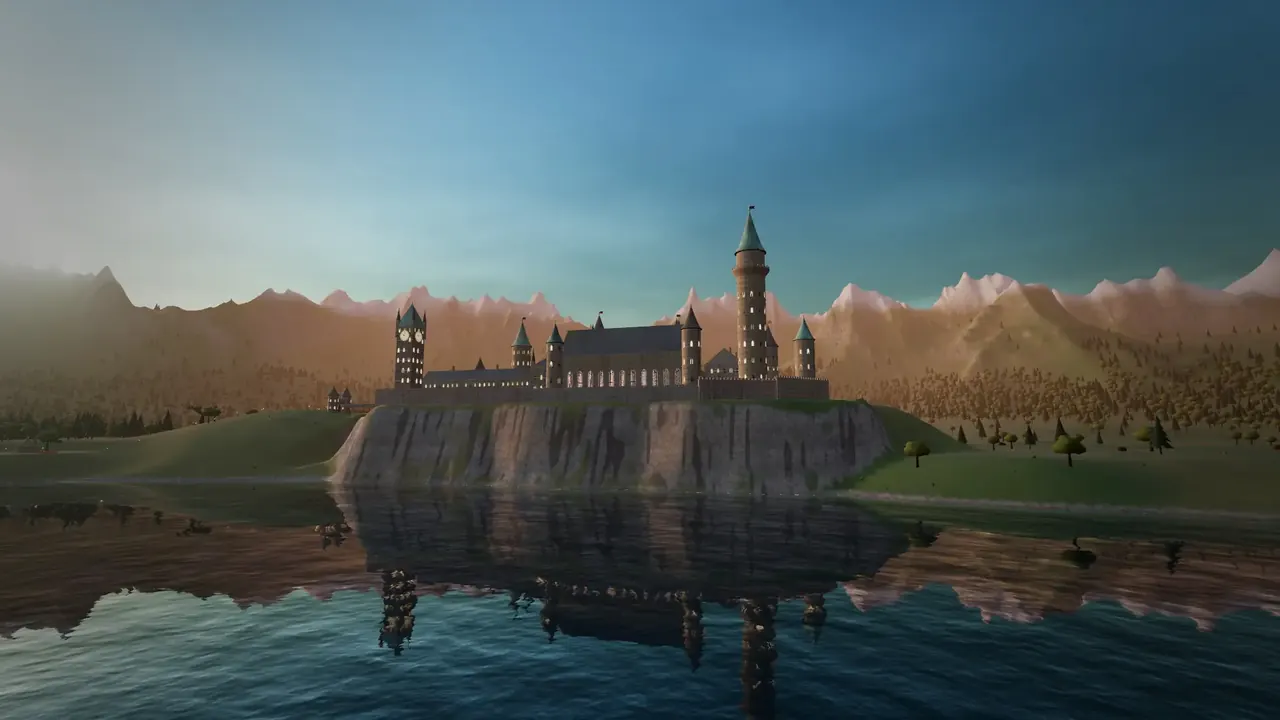
- Lake reflection. While lakes and seas reflect their surroundings, the scene is drawn one more time. Turn it off and the water reflects only the sky, and FPS rises noticeably. Since the school is on the lake shore, you feel this setting's effect right away.
- Glow and color effects. Light glow and the final color adjustment are drawn in separate passes. Turning them off is also a clear gain. Screen effects like hit, cold and darkening still show.
- Surface quality. How detailed the castle's stones, the ground and the planks are drawn. MEDIUM or BASIC; it simplifies the bumps and gives a good gain on weak cards.
- Ground cache. On the school grounds it prepares the ground's paint once and keeps it; the graphics card doesn't recompute it every frame. Turning it on can raise FPS noticeably. In return it takes a bit of space in the graphics card's memory.
- Shadows. Turning them off raises FPS. If you don't want to turn them off completely, try NEAR: shadows are drawn over a narrower area with less detail. Setting Shadow update to HALF RATE also updates the shadows every other frame.
- Texture quality. Lower it if your graphics card has little memory. Surfaces get a bit blurrier but the memory gets relief. The resolution changes when the page reloads.
- Anti-aliasing. Turning it off raises FPS; if you don't want to turn it off, 2× is lighter.
If it stutters in crowds
If you stutter in the bazaar, at curse stones or in a big boss fight, but play fine in an empty spot, the problem is most likely the crowd, which usually means the processor. The Characters and effects section in Settings is for exactly this:
- Crowd in the school. How many students are drawn at school. Quest givers, merchants and teachers are always visible. Reducing it helps on computers with a weak processor.
- Distant wizard detail. Wizards far away are drawn more simply and their movements are calculated less often. Your own wizard is always fully drawn.
- Other players' effects. REDUCED draws other people's spells more simply; ONLY MINE doesn't draw them at all. One of the settings that makes the most difference in big fights.
- Effect quality. MEDIUM or PLAIN draws fewer particles and glow in spells.
- Other players' companions. NEARBY or HIDE. Your own companion is always visible.
- Character shadows. ONLY MINE or OFF.
The distant world
- View distance. How far is drawn; beyond that, fog covers it. LOW draws 600, MEDIUM 800, HIGH 1000 meters. Shortening it gains FPS by not drawing the distant mountains and forests.
- Tree detail and Grass. Reducing either gains a little. The difference is felt more in the forest realms.
On the browser side
A few things outside the game help too:
- Make sure hardware acceleration is on in your browser's settings. If it's off, the processor draws the game instead of the graphics card and everything slows way down.
- If you're on a laptop, plug it in. Computers running on battery throttle the graphics card.
- Close extra tabs in the background, especially any with video.
- Use a current version of Chrome, Edge or Firefox.
We've collected how the game runs on which computers in our system requirements post.
The short recipe
If the game lags, try this in order: set graphics quality to LOW. If it's still slow, set Resolution scale to AUTO. If you stutter in crowds, set Other players' effects to REDUCED. On most computers these three steps are enough.
For the rest of the game: What is Kalendor? and the beginners guide.